Best TV Settings for GTA 6 on PS5, PS5 Pro & Xbox
Plug the console into a fast HDMI port, let the TV drop into game mode, turn on HGIG before you run the PS5's HDR screens, and don't count on VRR: at a locked 30 fps it has nothing to do on a PS5, and on a Samsung it switches off the one setting that smooths 30 fps inside game mode. Then choose your motion settings, because at 30 fps they decide how GTA 6 actually feels.
What's confirmed, as of 11 November 2026: Rockstar says GTA 6 is "targeting 30 frames per second" on PS5, PS5 Pro, Xbox Series X and Series S (Rockstar Newswire, 10 Nov 2026). The PS5 Pro adds PSSR clarity and ray-traced shadows, not frames. No 40fps or 60fps mode is announced; the 40fps talk comes from a 9 Nov datamine, not an announcement. Resolution, HDR, VRR and 120Hz output haven't been published by Rockstar, Sony or Microsoft, and the game's own HDR and motion-blur options won't be known until it launches on 19 November. We'll update this page after launch.
The Five-Minute Version
- Port: the console goes in a 4K 120Hz port. That's HDMI 4 on a Sony BRAVIA 8 II and HDMI 1 or 2 on a TCL QM6K or QM7L, not "port 3 or 4" everywhere.
- Game mode: leave ALLM on so the TV switches itself.
- Enhanced HDMI: Input Signal Plus (Samsung), HDMI Deep Color (LG), Enhanced format (Advanced) (Sony), HDMI Mode (TCL).
- HDR: HGIG on, then the PS5's Adjust HDR screens in the light you play in.
- VRR and motion: VRR off if you want Samsung's Game Motion Plus; otherwise it does no harm unless you see flicker.
- Soundbar: on the TV's eARC port, never between the console and the TV.
Step 1: Game Mode and ALLM
Game mode strips out the processing that makes a TV slow to respond. RTINGS says leaving it "dramatically increases input lag". In game mode most current TVs measure around 9 to 14 ms; a 30 fps frame lasts 33 ms, so a good game mode adds less than half a frame.
ALLM (auto low-latency mode) lets the console switch the TV for you. On the PS5 it's at Settings > Screen and Video > Video Output > ALLM. Sony adds a catch worth knowing: the PS5 forces low-latency mode whenever VRR is on, so "to completely turn off ALLM, you must also set VRR to Off". That matters on an LG, where smoothing needs game mode off (Step 6).
The TV's game mode has a different name on each brand: Game Optimizer on LG, Game Mode on Samsung (switched on by auto detection when a console connects), Content type Game on Sony, Game Master on TCL, and the Game Bar on Hisense, where RTINGS says ALLM and VRR are toggled.
Step 2: The Right HDMI Port
At the confirmed 30 fps in a 60Hz signal, any HDMI port carries the game. The fast ports matter if the PS5 sends GTA 6 at 120Hz (unknown until launch), for other 120Hz games, and for any 40fps mode that might come later. So plug in once, correctly, and forget it. If you're not sure what the ports do, our HDMI 2.1 explainer covers it.
| TV | Console port | Soundbar (eARC) |
|---|---|---|
| Sony BRAVIA 8 II | HDMI 4 (only 3 and 4 do 120Hz) | HDMI 3, which uses up the other fast port |
| TCL QM6K, QM7L | HDMI 1 or 2 (3 and 4 are 4K 60Hz) | HDMI 4, a slow port, so both fast ports stay free |
| TCL QM8L | Any: all four are HDMI 2.1 | The port marked eARC |
| Hisense U7SG | HDMI 1, 2 or 4 (all four are HDMI 2.1) | HDMI 3 |
| Hisense U8QG | HDMI 1 or 2 (it has three ports, all HDMI 2.1) | HDMI 3 |
| LG C6, B6 | Any: all four are full HDMI 2.1 | The port marked eARC |
| Samsung S90H, S85H | Any: all four are full HDMI 2.1 | HDMI 3 on the S90H |
| Samsung M70H, QN70H | Any: no HDMI 2.1, 60Hz only | The port marked eARC |
Sources: Sony's US Reference Guide, TCL and Hisense spec sheets, RTINGS reviews, Tom's Guide (S90H eARC). On other Samsung models, Samsung's support page says 4K 120Hz is on "HDMI IN 4 port with a Game icon" and that it "may vary depending on the model". The Hisense U6SF Pro has two HDMI 2.1 ports, but Hisense hasn't published which numbers.
Don't trust the sticker blindly. One owner of an 85-inch TCL QM7L found the port labelled as eARC behaved as HDMI 1, and a QM8L owner was sent a replacement port label by TCL support. Once you're plugged in, check what the console actually sees (the last section of this page shows where).
Step 3: Switch On the TV's Enhanced HDMI Mode
Most TVs need one more switch on the console's input before they accept a full 4K HDR or 4K 120Hz signal. Each brand calls it something different:
- Samsung: Input Signal Plus. Samsung says it turns on by itself when a console is detected. If it hasn't, go to Settings > General > External Device Manager > Input Signal Plus.
- LG: HDMI Deep Color. LG's C6 manual says the picture "may be clearer" with it on for a device that supports it, and to switch it off if a device misbehaves.
- Sony: Enhanced format (Advanced). Settings > Channels & Inputs > External inputs > HDMI signal format/VRR, on the console's port. Sony's Help Guide says to pick it for a console that does 4K 120Hz. An on-screen setup also runs when you connect a console.
- TCL: HDMI Mode. RTINGS sets it to "HDMI 2.1" (or "Auto") on the input in use on the QM6K, and says it's needed for HDR gaming. TCL's US manual doesn't give the menu path, and for the QM7L the name isn't documented.
- Hisense: no Hisense manual for the U7SG, U8QG or U6SF Pro names the setting. Owners call the choices "Enhanced" and "Enhanced Pro". One U7SG owner got a black screen from his PS5 on "Enhanced Pro", and his thread never found the cause. Nobody has reported a confirmed fix.
Step 4: HDR, HGIG and the PS5's Adjust HDR Screens
Your PS5 has its own HDR calibration, and your TV has its own tone mapping. Run both at once and they fight: What Hi-Fi? found that calibrating with the TV's tone mapping on gives "a hugely over-brightened image with blown out highlights". HGIG tells the TV to step aside and let the console do the job.
- Turn on HGIG in the TV's game picture settings.
- On the PS5, go to Settings > Screen and Video > Video Output > Adjust HDR, in the room lighting you play in (Engadget's advice).
- Screens one and two: press down until the symbol is fully visible, then up until it just disappears. Screen three: all the way down (Tom's Guide's method).
Sony's on-screen instruction says "barely visible", others say make it vanish, and owners have argued over the difference for years. A click either way won't ruin your evening.
One more PS5 switch sits at Settings > Screen and Video > Video Output > HDR. "On When Supported" shows non-HDR games and apps in SDR; "Always On" converts them to HDR (Sony).
HGIG by brand
- LG C6 and B6: HGIG is there (TechRadar). Dynamic Tone Mapping is the brighter alternative; in RTINGS's game-mode tests the C6's real-scene HDR numbers are with it on. LG owners split on which they prefer, and some switch per game.
- Samsung S90H and S85H: HGiG is on Samsung's spec sheets. RTINGS ran its S90H HDR tests with HDR Tone Mapping on Static and found Active brighter in some scenes "but isn't as accurate".
- Sony BRAVIA 8 II: no HGIG switch. The game-mode control is HDR Tone Mapping (Gradation Preferred is RTINGS's accurate setting). Sony TVs can also hand the PS5 its HDR values automatically (Auto HDR Tone Mapping); What Hi-Fi? found that close but a click or two off on an older Sony, and turned the TV's tone mapping off to calibrate by hand, then back on.
- TCL QM6K and QM7L: HGIG is in the Game Master menu on the QM6K (shown in a reviewer's walkthrough) and listed for the QM7L in Digital Trends' spec table. It isn't in TCL's US manual.
- Hisense U7SG: no HGIG switch, and RTINGS says it doesn't need one because it doesn't tone-map around its peak. Set Dynamic Tone Mapping to Off for accuracy.
GTA 6's HDR is unknown until launch. Rockstar hasn't said anything about it. An HDR specialist reading the launch trailer suspects a "cheap SDR-to-HDR upgrade", and says himself it's a guess (GamingBolt, 16 Oct 2026). Rockstar's record isn't encouraging: Red Dead Redemption 2's HDR was measured as upscaled SDR in 2018, and some RDR2 owners still play it with HDR off. If GTA 6 looks flat or washed out after calibration, try it in SDR before blaming your TV. We'll add the game's own HDR options here after 19 November.
Xbox: Dolby Vision for Gaming
Dolby Vision gaming is an Xbox feature: Settings > General > TV & display options > Video modes > Dolby Vision for Gaming (Xbox Support). Whether GTA 6 uses it isn't stated by Rockstar or the Xbox Store. Samsung TVs have no Dolby Vision at all. On an LG, one owner reports the HGIG option disappears while Dolby Vision is on, and HDTVTest has recommended HDR10 with HGIG over LG's Dolby Vision game mode. If you'd rather calibrate it yourself, switch Dolby Vision off and use HGIG.
Step 5: 120Hz Output and VRR at a Locked 30
120Hz output (PS5): Sony says the setting enables 120Hz "for your TV and games that support 120 Hz frame rate". RTINGS staff say a 30 fps game normally arrives as a 60Hz signal. A datamine found a 120Hz flag in GTA 6's PlayStation files, so whether the game uses it is open until 19 November. Engadget recommends turning it on, and on a TV with an HDMI 2.1 port we'd leave it on: 30 fps divides evenly into 60Hz and 120Hz, so pacing is even either way. Switch it off only if you get picture drop-outs, as Sony advises.
VRR: VRR matches the TV's refresh to a frame rate that wobbles. A locked 30 doesn't wobble, and the PS5's VRR window starts at 48Hz (TechRadar's test, 2022; Sony's own VRR page wasn't available when we checked). The datamine found no VRR flag for GTA 6 either. So on PS5, VRR has nothing to do for this game, and it can get in the way:
- On a 2026 Samsung, "If VRR is turned on, Game Motion Plus is disabled" (Samsung).
- Sony's Help Guide warns VRR can cause "slight brightness fluctuations (flicker)".
- A Hisense U7 owner chased flicker and stutter through cables and ports; turning VRR off on the TV and the Xbox appeared to fix it.
Our call: if you want game-mode smoothing on a Samsung, or you see flicker, turn VRR off on the TV and the console. If neither applies, leaving it on costs nothing. If Rockstar ever adds a 40fps mode, come back here; we'll update this page.
Xbox: Microsoft hasn't published how the Xbox handles VRR for 30 fps games. With the console set to 120Hz under TV & display options, one 2023 camera test of a 60 fps game measured about 4 to 5 ms less lag; nobody has measured a 30 fps game that way.
Step 6: Motion Settings, the Ones That Change How GTA 6 Feels
Picture a slow pan across a sunlit street. On an OLED, every one of the 30 frames a second snaps into place, and the pan looks like a flip-book. On a cheaper LCD the pixels change slowly, so the same pan smears. RTINGS calls it "an inverse relationship": the faster the pixels, the more stutter. Neither is a fault, and how much it bothers you is personal. Owners of LG OLEDs describe 30 fps judder that gives them headaches; a TCL QM6K owner gets headaches from the blur instead.
The fix for stutter is motion smoothing (frame interpolation). The catch is that most TVs only allow it outside game mode, which costs you the low input lag from Step 1. Here's what each TV allows, from the makers' manuals first and RTINGS second:
| TV | Smoothing inside game mode? | The setting |
|---|---|---|
| Samsung 2026 (S90H, S85H, QN70H and up) | Yes, consoles only, with VRR off | Game Motion Plus, in the Game Bar |
| TCL QM7L, QM8L | Yes (RTINGS); added lag not published | Motion Clarity |
| LG C6, B6, C6H | No (LG) | TruMotion, outside game mode only |
| Sony BRAVIA 8 II | No (Sony) | Motionflow, outside Game content type only |
| Hisense U8QG | No over HDMI (RTINGS) | Works over USB-C only |
| Hisense U6SF Pro | Offered, but RTINGS found it does nothing | Game-mode interpolation option |
| TCL QM6K, Hisense U7SG | Unknown: no maker, lab or owner answer yet | Motion Clarity (TCL), Motion Enhancement (Hisense) |
Samsung: Game Motion Plus
Open the Game Bar (press and hold Play/Pause on the remote in Game Mode) and switch on Game Motion Plus. Samsung's rules explain every "greyed out" complaint: it works on game consoles only, VRR turns it off, and AI Gaming Optimiser dims it. The M70H doesn't have it.
Two things are still open. First, the lag: one YouTuber claims 40 to 50 ms with no method given, while another judged it about one frame by eye on a 2023 model; no lab number for a 2026 Samsung is public. Second, whether it smooths a 30 fps PS5 game sent at 60Hz: 2021-22 Samsung owners said it didn't, while an S90H owner says RDR2 "looks incredible frankly". Try it on day one and trust your own eyes and thumbs.
LG: TruMotion outside game mode
LG says plainly that "TruMotion cannot be set if you set the game mode", and its advice for 30 fps games is to turn off ALLM on the PS5 and use TruMotion instead. One C6 owner found TruMotion still greyed out until he also turned off:
- ALLM and VRR on the PS5 (Settings > Screen and Video > Video Output);
- the Game Optimizer setting on the TV;
- HDMI 4:4:4 pass-through on that port.
He says it then "looks much better"; a second owner says everything looks "smooth like its 60 fps". Owners of older LG OLEDs used De-Judder around 8 of 10 and report "slight input delay and some artifacting". The lag on a C6 hasn't been measured, so this is a trade for slow exploring, not for fights.
Sony, TCL and Hisense
Sony: in Game content type, Sony's Help Guide says Motion blur reduction is on and Motionflow and CineMotion are off. Smoothing means switching content type back to Video, with the lag that brings. TCL QM7L and QM8L: RTINGS says they generate in-between frames when gaming "without adding a massive amount of input lag", but TCL doesn't document where the setting lives inside Game Master. TCL QM6K: the manual lists Motion Clarity under Picture > Motion; whether it works in Game Master is unknown. Hisense: see the table above.
In-game motion blur
Owners split. In the biggest 30 fps OLED thread, about five say in-game motion blur helps (one calls it "mandatory" at 30 fps) and about three say it hurts, two of them that it makes them physically sick. GTA 6's own motion-blur option is unknown until launch. Try both, and expect the right answer to depend on you, not on the TV.
If your TV is the limit (60Hz only, no HDMI 2.1, or no smoothing and 30 fps bothers you), these are the TVs that fix that problem. The full list, by room and budget, is in our best TVs for GTA 6, and OLED or mini-LED for GTA 6 covers stutter against blur in depth.
If your TV is the limit
-
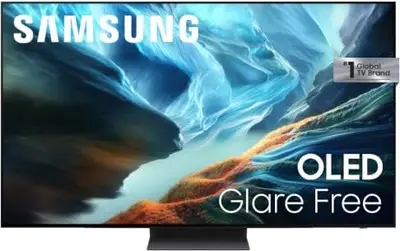 Smoothing in game mode, lit roomSamsung 65" S90H: Game Motion Plus inside game mode, a matte screen RTINGS rates outstanding for reflections, and four full HDMI 2.1 ports. Its catch: the lag Game Motion Plus adds is not measured Check Price on Amazon
-
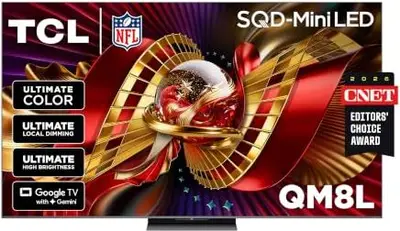 Smoothing in game mode on an LCDTCL 65" QM8L: game-mode interpolation that works with any source (RTINGS), very bright HDR and four HDMI 2.1 ports. Its catch: RTINGS calls its game-mode motion "extremely blurry" at 60Hz Check Price on Amazon
-
 Leaving a 60Hz TV on a budgetTCL 65" QM6K: 120Hz, two HDMI 2.1 ports and RTINGS's best budget TV for PS5, ready if a 40fps mode ever comes. Its catch: dim HDR, and game-mode smoothing is unknown Check Price on Amazon
Step 7: The Soundbar Goes on eARC
Run the console straight into the TV and the soundbar into the TV's eARC port. Don't put a soundbar or receiver between the console and the TV: TechRadar warns a receiver may not pass 120Hz, and Xbox Support says to check with the receiver's maker if 4K 120Hz fails through one.
The port table in Step 2 shows where eARC sits. The Sony is the awkward one: eARC shares HDMI 3, one of its two fast ports, so console plus soundbar fills both. On the TCL QM6K and QM7L, eARC is on a slow port, so a soundbar costs you nothing.
On Sony TVs, A/V sync is fixed off in Game content type. Sony also had an audio-sync bug in long game sessions on Android 14 BRAVIAs, including the 8 II; a fix (firmware 114.603.100.1) was reported rolling out in North America in mid-September 2026. Check for updates before launch day.
The cable question: keep the one in the box. Sony lists "the cable included with the PS5 console" as fit for 4K 120Hz, and the Xbox Series X ships with an Ultra High Speed HDMI cable. LG's C6 manual recommends an Ultra High Speed cable of 3 m or less. Replace yours only if you need it longer or you get 120Hz drop-outs.
Check It Worked
PS5: Settings > Screen and Video > Video Output > Video Output Information shows the resolution, VRR and HDR the console sees (Sony). Xbox: Settings > General > TV & display options > 4K TV details. If either shows less than your TV should manage, swap ports before you swap cables. Wrong port, wrong label or the enhanced-HDMI switch from Step 3 is the usual cause.
On launch day, Video Output Information will also answer the open question: whether GTA 6 arrives at 60Hz or 120Hz on PS5.
What We'll Add After 19 November
GTA 6's own settings: its HDR options (a peak-brightness slider or not), its motion-blur control, and any display or performance modes. We'll also add what the PS5 actually outputs, and whether Game Motion Plus and TCL's game-mode smoothing work on it. Until then, everything above is the TV and console side, which you can set up today.
Still deciding whether you need a new TV at all? Does GTA 6 need a 120Hz TV? answers that, and our TV setup guide covers the rest of the picture and sound settings.
Frequently Asked Questions
Should HGIG be on or off for GTA 6?
On, if your TV has it, while you run the PS5's Adjust HDR screens. HGIG stops the TV adding its own tone mapping on top of the console's, so the calibration means something (Engadget, 1 Nov 2026; What Hi-Fi? warns that calibrating with the TV's tone mapping on gives a 'hugely over-brightened image'). LG, Samsung and TCL TVs list HGIG. Sony's BRAVIA 8 II and the Hisense U7SG have no HGIG switch: on the Sony use HDR Tone Mapping (Gradation Preferred), on the Hisense set Dynamic Tone Mapping to Off. Some LG owners prefer Dynamic Tone Mapping for a brighter picture; that is taste, not a mistake.
Which HDMI port should the PS5 go in?
It depends on the brand. Sony BRAVIA 8 II: HDMI 4 for the console, HDMI 3 for an eARC soundbar (Sony's US Reference Guide). TCL QM6K and QM7L: HDMI 1 or 2, the only 4K 120Hz ports. LG C6 and B6, Samsung S90H and S85H, TCL QM8L and Hisense U7SG: all four ports are full HDMI 2.1, so avoid only the eARC port if you use a soundbar. The common 'use port 3 or 4' advice is right for Sony and wrong for TCL.
Should VRR be on or off for GTA 6?
As of 11 November 2026, VRR has nothing to do at a locked 30 fps on PS5: the PS5's VRR range starts at 48Hz (TechRadar's test), and the 9 Nov datamine found no VRR flag for the game. On a 2026 Samsung, VRR switches off Game Motion Plus, so turn VRR off if you want smoothing. If you see dark scenes flicker on an OLED or a Hisense, VRR off is the first thing to try. Recheck after launch in case Rockstar adds a higher frame-rate mode.
Should I turn on 120Hz output on the PS5 for GTA 6?
Leave it on if your TV has an HDMI 2.1 port. Sony says the setting enables 120Hz output 'for your TV and games that support 120 Hz frame rate', and a datamine found a 120Hz flag in GTA 6's PlayStation files, so whether the game actually sends 120Hz is unknown until 19 November. Either way 30 fps divides evenly into 60Hz and 120Hz, so frame pacing stays even. Turn it off only if you get video problems, as Sony advises.
Why is Game Motion Plus greyed out on my Samsung TV?
Samsung gives three reasons on its 2026 Game Bar page: Game Motion Plus works only with game consoles, it is disabled when VRR is on, and its icon is dimmed while AI Gaming Optimiser is on. Turn VRR off (on the TV and the console) and AI Gaming Optimiser off. The Samsung M70H doesn't have Game Motion Plus at all.
Can I get motion smoothing in game mode on an LG OLED?
No. LG says 'TruMotion cannot be set if you set the game mode'. LG's advice for 30 fps games is to turn ALLM off on the PS5 and use TruMotion outside game mode. One LG C6 owner also had to turn off the Game Optimizer setting and HDMI 4:4:4 pass-through before TruMotion unlocked. You lose game-mode input lag doing this; how much hasn't been measured on the C6.
Does GTA 6 support Dolby Vision on Xbox?
Not stated by Rockstar or the Xbox Store as of 11 November 2026. Xbox Series X and S support Dolby Vision for games (Xbox Support), and the Xbox applies it to HDR games that support it. Samsung TVs have no Dolby Vision. One LG owner reports the HGIG option disappears while Dolby Vision is on, and HDTVTest has recommended HDR10 with HGIG on LG over its Dolby Vision game mode.
Do I need a new HDMI cable for GTA 6?
Almost certainly not. The PS5's own cable is the one Sony recommends for 4K 120Hz, and the Xbox Series X ships with an Ultra High Speed HDMI cable. At the confirmed 30 fps, the game doesn't need a 4K 120Hz signal anyway. Buy one only if you need a longer cable or you see 120Hz drop-outs.
Sources
This guide is based on the console and TV makers' own support pages and manuals, and on lab measurements and reports by the outlets below. We have not tested these TVs or settings ourselves; owner reports are labelled as such and are small samples.
- Rockstar Games Newswire, "Pre-load Grand Theft Auto VI now" (10 Nov 2026)
- PlayStation Support (US), PS5 video output settings: VRR, 120 Hz Output, ALLM, Video Output Information (read 11 Nov 2026)
- PlayStation Support (US), How to enable and adjust HDR on PS5 (read 11 Nov 2026)
- Samsung Canada Support, How to connect PlayStation 4 and 5 to your Samsung TV (Input Signal Plus)
- Samsung Australia Support, Game Bar features on the 2026 Samsung Smart TV
- Samsung US Support, Game Bar on 2026 models (ANS10001584)
- LG, OLED65C6 owner's manual (HDMI Deep Color, cable)
- LG USA Support, 30fps game stuttering on PS5 and TruMotion (dated 11/04/2025)
- Sony, BRAVIA Help Guide (US), HDMI signal format/VRR and picture settings (read 11 Nov 2026)
- Sony, BRAVIA 8 II Reference Guide (US), HDMI inputs
- TCL, 55QM7L specifications sheet (HDMI ports)
- Hisense, 65U7SG specifications sheet (HDMI ports, eARC)
- RTINGS, TCL QM6K review and recommended settings
- RTINGS, TCL QM7L review
- RTINGS, TCL QM8L review
- RTINGS, Hisense U7SG review
- RTINGS, Hisense U8QG review
- RTINGS, Hisense U6SF Pro review (rechecked 26 Oct 2026)
- RTINGS, Samsung S90H OLED review
- RTINGS, LG C6 OLED review
- RTINGS, Sony BRAVIA 8 II review
- RTINGS, Stutter test (updated 19 Mar 2026)
- RTINGS, Input lag test method (updated 3 Oct 2025)
- Engadget, "Change these PlayStation 5 settings before GTA 6 comes out" (1 Nov 2026)
- TechRadar, "I tested VRR on PS5" (1 May 2022)
- Tom's Guide, PS5 settings you should change first (25 Dec 2022)
- What Hi-Fi?, What is Perfect for PlayStation 5? (13 May 2025)
- Xbox Support, Dolby Vision on Xbox Series X|S
- Xbox Support, 4K gaming at 120Hz
- GamingBolt, HDR specialist on GTA 6's trailer HDR (16 Oct 2026)
- Engadget, Red Dead Redemption 2 HDR (31 Oct 2018)
- Vice, GTA 6 datamine: 120Hz flag and possible 40fps mode (9 Nov 2026)
- Reddit r/LGOLED, LG 65" C6 and PS5: unlocking TruMotion (owner reports, 2 Nov 2026)
- Reddit r/OLED_Gaming, optimizing an OLED for 30fps GTA 6 (owner reports, Aug to Nov 2026)