Best TVs for Seniors: Simple Setup & Easy Remotes
The best TV for an older adult is the one that does not require a phone call for help. We picked TVs with the simplest smart platforms, clearest remotes, large readable screens, and audio features that make dialogue easy to hear — all at prices that respect a fixed budget.
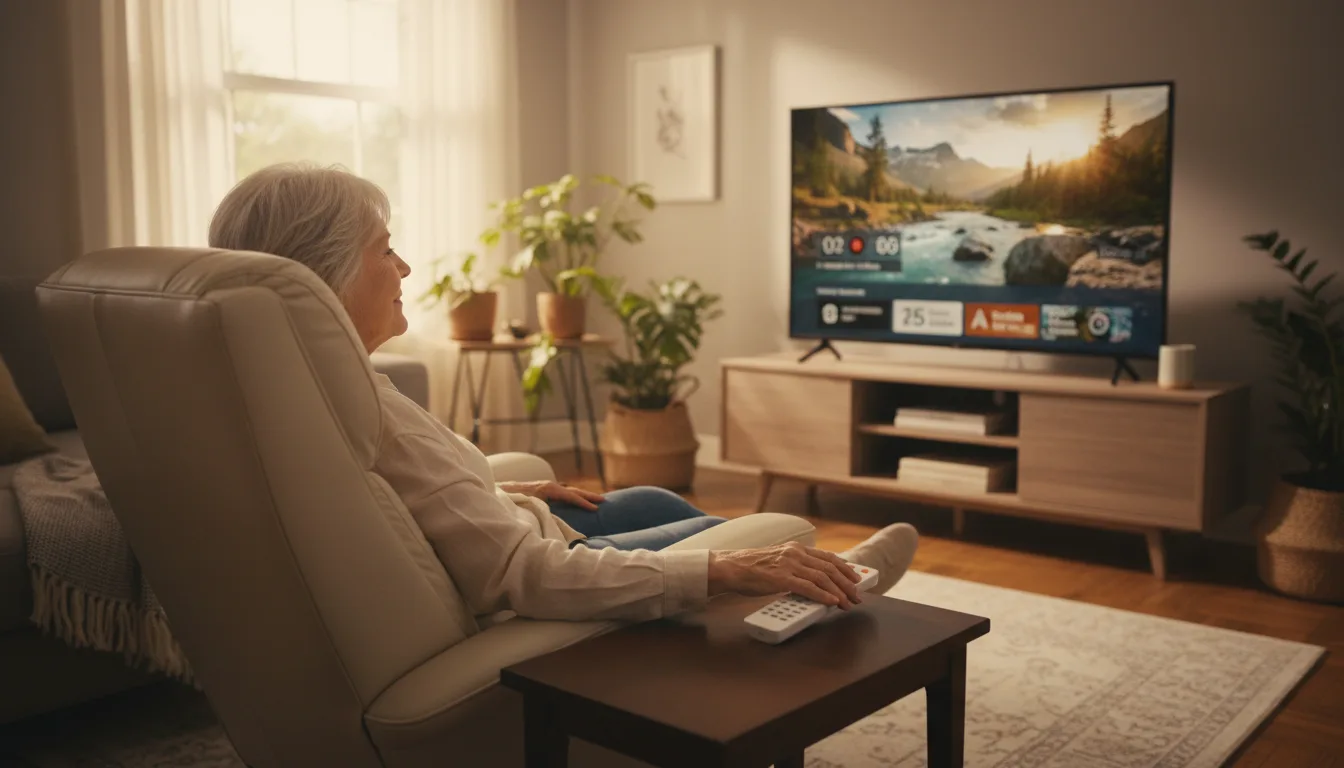
Simplicity Beats Specs Every Time
A flagship OLED with 17 picture modes and a minimalist remote with four unlabeled buttons is the wrong TV for most older viewers. The right TV has a remote with clearly labeled buttons, an interface that does not rearrange itself with every software update, and menu text that is large enough to read from across the room.
We have seen expensive, highly-rated TVs sit unused because the owner could not figure out how to switch from cable to Netflix. That is not a failure of the viewer — it is a failure of the design. Every TV on this page was chosen for usability first, picture quality second.
The good news: you do not need to spend a lot to get a TV that is easy to use. The simplest interfaces and the best voice control features are found on budget and mid-range models, not on the expensive flagships aimed at enthusiasts.
Choosing the Right Smart TV Platform
Roku OS: The Most Intuitive Choice
Roku's home screen is a simple grid of app tiles. No algorithmic content feed trying to guess what you want to watch. No auto-playing video previews. Press the Home button and you see your apps. Select one and it opens. That straightforward logic is why Roku shows up in nearly every recommendation for older adults.
The Roku remote reinforces that simplicity. It has a directional pad, a Home button, a Back button, and four dedicated shortcuts for Netflix, Disney+, Apple TV+, and the Roku Channel. One press goes straight to the app. Voice search works by holding the microphone button and saying a show name — no on-screen keyboard needed.
Roku also avoids the aggressive ad placement that makes other platforms feel cluttered. The home screen stays organized exactly how you arrange it, and app icons do not get shuffled around by algorithms.
Fire TV: Best for Voice-First Navigation
Amazon's Fire TV integrates Alexa more deeply than any competitor. Press the voice button on the remote and say "Play NCIS on Paramount+" or "Show me comedies" or "What is the weather?" and Alexa handles it. For someone who finds remote-based menu navigation frustrating, voice control becomes the primary way to use the TV.
Fire TV also works with Echo devices. If there is an Echo speaker in the same room, the viewer can say "Alexa, turn on the TV" or "Alexa, play the news on my Fire TV" without touching the remote at all. That hands-free capability is a real accessibility feature.
The trade-off is advertising. Fire TV's home screen includes sponsored content and Amazon recommendations that make the interface feel busier than Roku. Once inside an app like Netflix or Hulu, the experience is identical to any other platform.
Samsung Tizen and Google TV
Samsung's Tizen OS is polished and fast, but the settings menus run deeper than most casual viewers need. Google TV aggregates content across streaming services into one feed, which helps with discovery but adds layers to the interface. Neither is a poor choice, but neither is as immediately intuitive for someone who wants to press a button and start watching.
Connect to Wi-Fi, sign into all streaming accounts, and arrange the home screen with favorite apps in the first row. A TV that works on day one gets used. A TV that requires setup may sit in the box. On Roku, pin the most-used channels to the top. On Fire TV, create a profile with a simplified layout and remove unused apps.
Screen Size: Bigger Means More Readable
A 65-inch TV makes on-screen text, channel guides, and menu options significantly easier to read from across a living room compared to a 50 or 55-inch panel. Closed captions, program descriptions, and settings labels all benefit from the extra screen real estate.
The price gap between 55-inch and 65-inch budget TVs has narrowed to the point where the larger size is almost always worth the small premium. Several of the TVs on this page offer 65 inches in the $300–$500 range or lower.
4K resolution helps readability too. Higher pixel density at 65 inches means that text and fine details stay sharp even on a large screen. Every TV on this page is 4K, and streaming services deliver 4K content automatically when the TV supports it.
Closed captions look better on 4K screens. If the viewer relies on subtitles, 4K resolution renders caption text more crisply than older 1080p sets. Most streaming apps also let you customize caption size, font, and background color in their accessibility settings — well worth adjusting during initial setup.
Audio Clarity: Hearing Dialogue Without Turning It Up
Thin modern TVs produce thin sound. Dialogue gets buried under music and sound effects, which is the most common complaint from older viewers. Two things make a real difference.
First, every TV has a dialogue enhancement or voice clarity mode buried in its audio settings. Samsung calls theirs "Active Voice Amplifier." Toshiba and Fire TV models with DTS Virtual:X offer a similar feature that pushes voices toward the center of the sound field. These modes are off by default — turning them on during initial setup avoids the "I can't hear what they're saying" frustration.
Second, speaker wattage varies between brands. Most budget TVs ship with 10W speakers, which are adequate but not impressive. Samsung's budget line includes 20W speakers — double the output of most competitors — which fills a room more effectively. Panasonic's W70 also ships with 20W.
For the clearest dialogue, a basic soundbar with a center channel driver is the single best upgrade. Connect it through the HDMI eARC port and the TV remote controls the soundbar volume automatically. No second remote. One button adjusts everything.
Go to Settings, then Audio or Sound, and look for "Dialogue Mode," "Voice Clarity," or "Active Voice Amplifier." This setting is off by default on every TV we tested. Enabling it during setup prevents the most common audio complaint from older viewers.
Voice Control: Navigation Without the Remote
Voice remotes eliminate the need to type on an on-screen keyboard or navigate through nested menus. Press the microphone button, say "Show me Jeopardy" or "Find westerns" or "Open Netflix," and the TV handles the rest. For someone who finds the directional pad confusing, voice becomes the primary way to use the TV.
Every platform on this page supports voice: Roku has voice search through the remote, Fire TV has full Alexa integration, and Samsung's Tizen responds to Bixby voice commands (or Alexa on some models). Fire TV goes further — paired with an Echo speaker, the TV responds to voice commands from across the room without pressing any button.
Teach the two most useful voice commands first. "Open [app name]" and "Search for [show name]" cover the vast majority of what any viewer does. Once those two commands feel natural, everything else follows. Write them on the instruction card you leave next to the remote.
Our Top Picks for Seniors
1. Roku 65" Select Series Smart TV (2025) — Simplest Interface, Clearest Remote
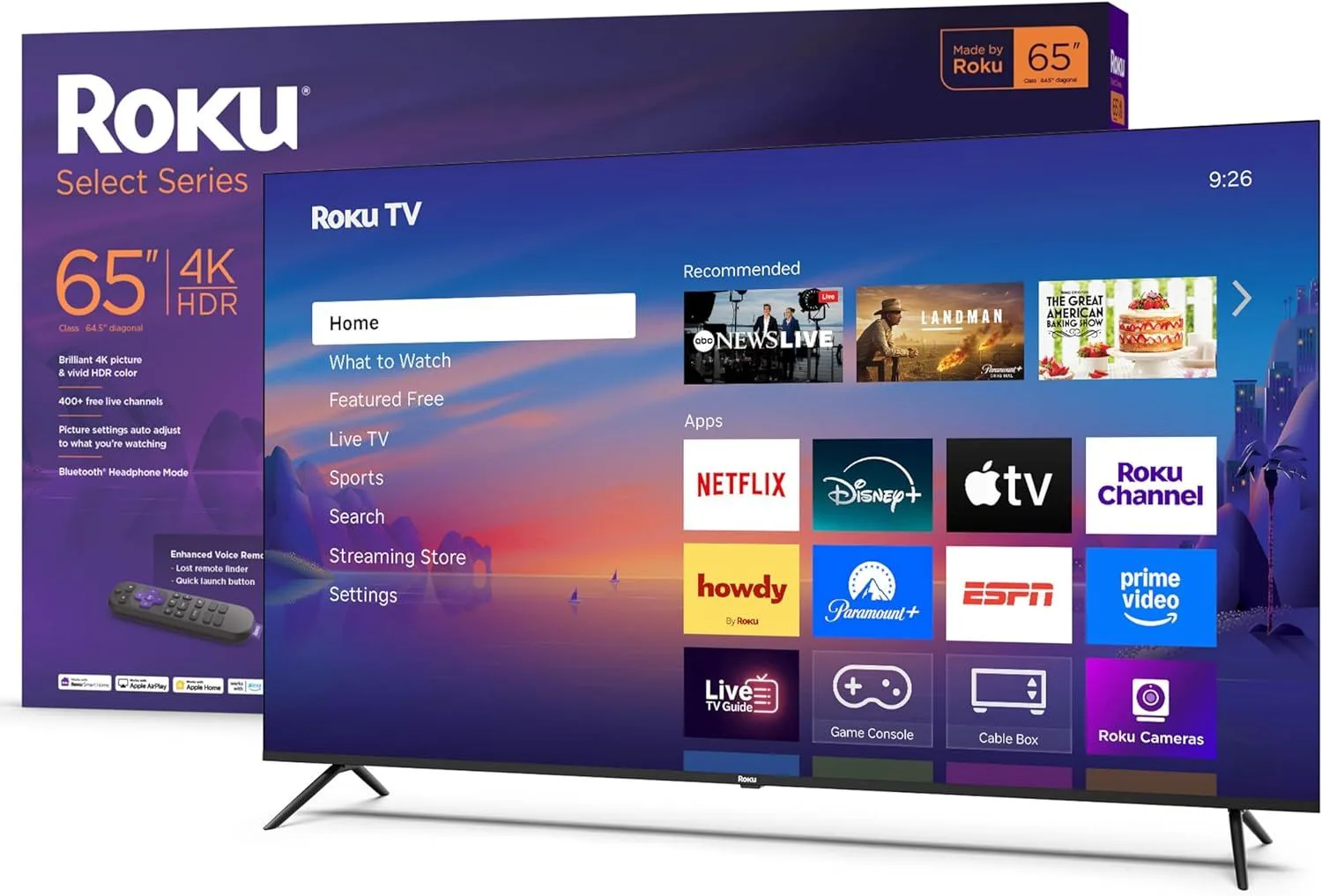
Roku OS on a 65-inch screen at $300–$500 is the easiest recommendation on this page. The interface shows a clean grid of apps and nothing else. The remote has labeled buttons, dedicated app shortcuts, and a microphone for voice search. No pop-up ads, no algorithmic feeds rearranging the home screen.
Apple AirPlay support means family members can share photos or FaceTime calls from an iPhone to the big screen — a nice bonus for grandparents who want to see pictures without squinting at a phone. The picture quality is basic but perfectly adequate for news, shows, and movies in a well-lit room.
Read our full Roku 65" Select review
2. Toshiba 65" C350 4K LED Smart Fire TV — Best Voice Control on a Budget
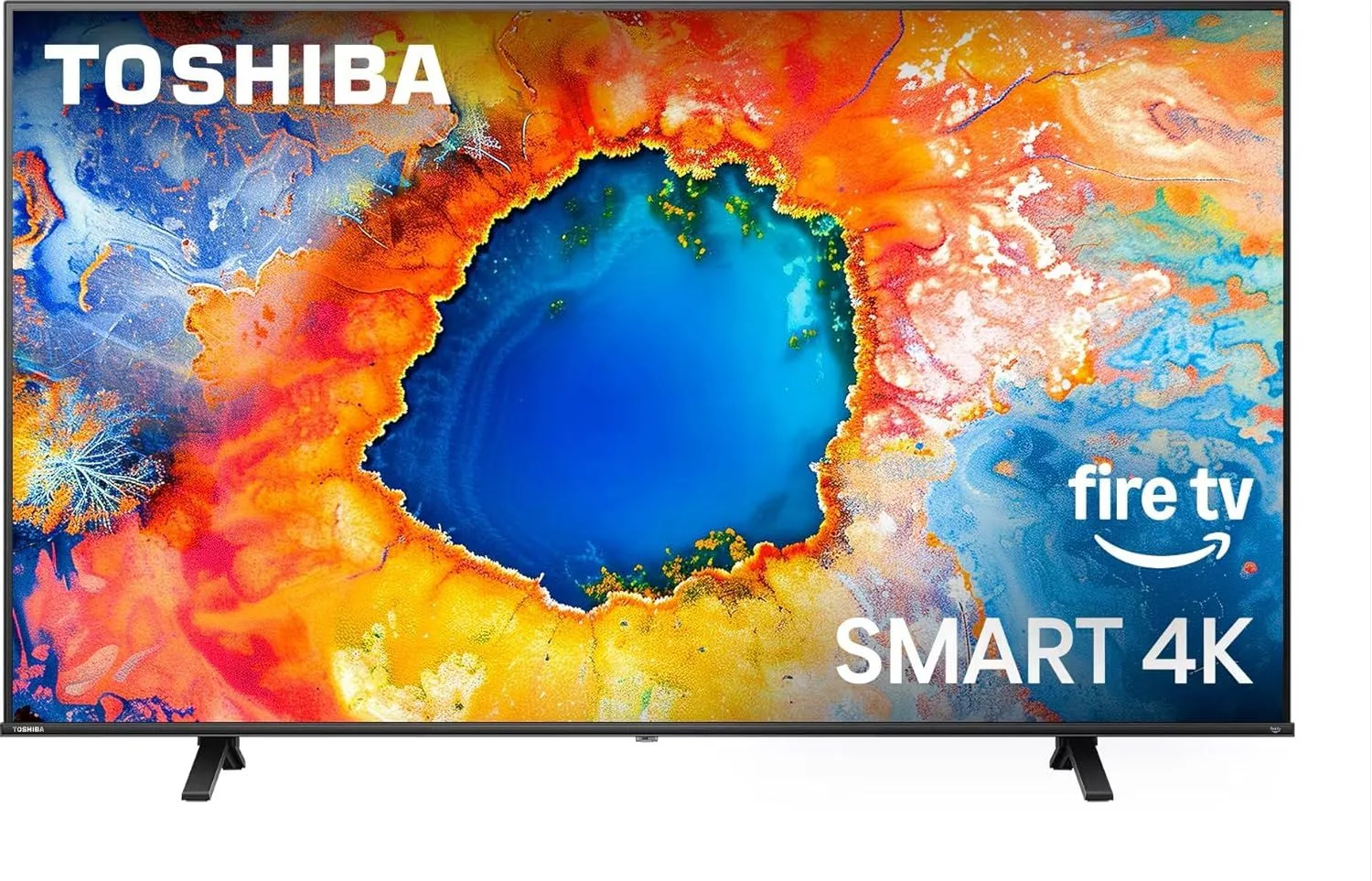
For someone who finds remote navigation difficult, Alexa voice control through the Fire TV platform is the best alternative. The Toshiba 65" C350 responds to voice commands through the remote's microphone — "Open Netflix," "Search for Jeopardy," "Turn up the volume." At $300–$500, it is a value-priced option with Dolby Vision for better streaming picture quality and DTS Virtual:X audio that helps center dialogue.
Toshiba's Regza Engine processing handles upscaling well, so older cable channels and standard-definition content look cleaner on this 4K screen. If an Echo speaker is already in the room, the viewer can control the TV entirely by voice without touching the remote.
Read our full Toshiba 65" C350 review
3. Insignia 65" 4K UHD Smart Fire TV (2025) — Largest Screen, Lowest Price
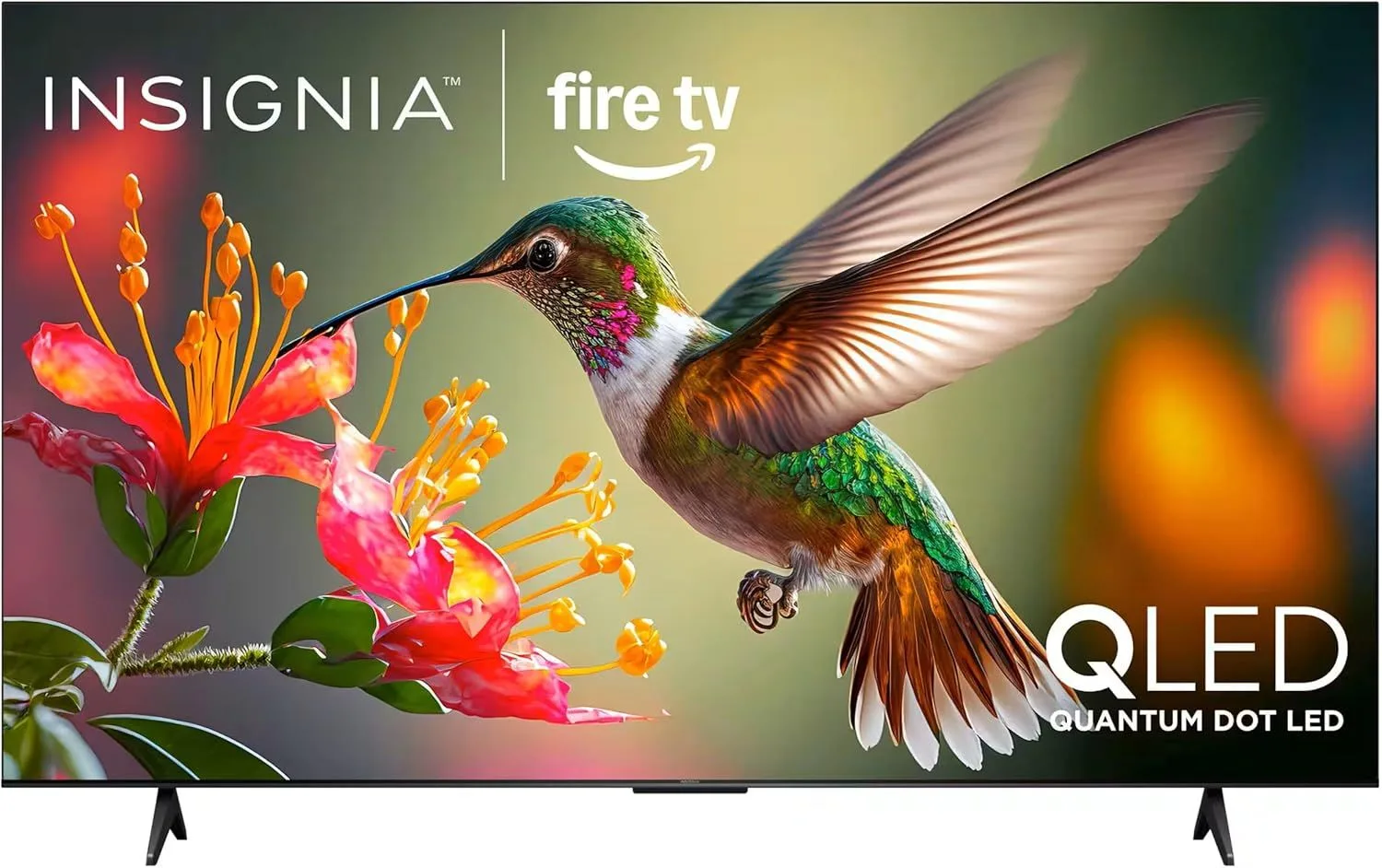
When budget is the top priority, the Insignia 65" Fire TV delivers a 65-inch 4K screen at $300–$500 — the lowest price for a name-brand 65-inch TV. Fire TV with Alexa voice control keeps navigation accessible, and Best Buy's retail support means in-store help is available if questions come up after purchase.
The speakers are modest at 12W, so plan on adding a soundbar if dialogue clarity is important. But as a large, readable screen that handles the fundamentals at the lowest possible investment, this is the practical choice for anyone testing whether a smart TV will get used regularly.
Read our full Insignia 65" Fire TV review
4. Samsung 65" U8000F Crystal UHD Smart TV — Best Built-In Audio
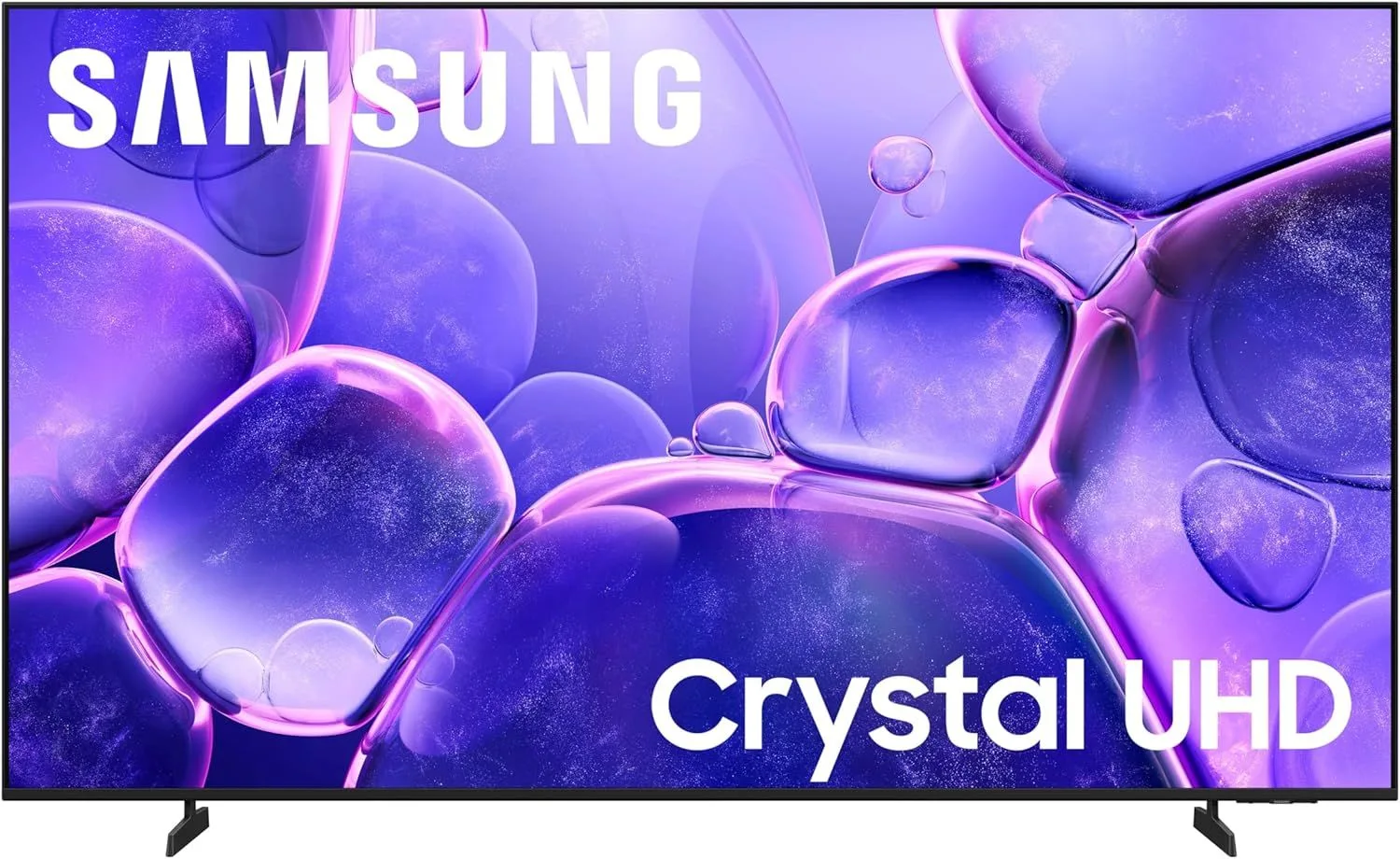
Samsung ships 20W speakers in the U8000F — double the output of most budget competitors. Object Tracking Sound Lite adds a spatial effect that helps separate dialogue from background noise. For someone who does not want a separate soundbar and just wants the TV to sound clear on its own, this is the best option in the budget category.
The Tizen interface is not quite as simple as Roku, but Samsung's overall build quality feels more premium. SmartThings integration is a bonus for family members who want to manage settings or troubleshoot remotely. At $300–$500, it is mid-range for its category for its class.
Read our full Samsung 65" U8000F review
5. Panasonic 65" W70 4K Ultra HD Smart Fire TV — Most Natural Picture for Long Viewing
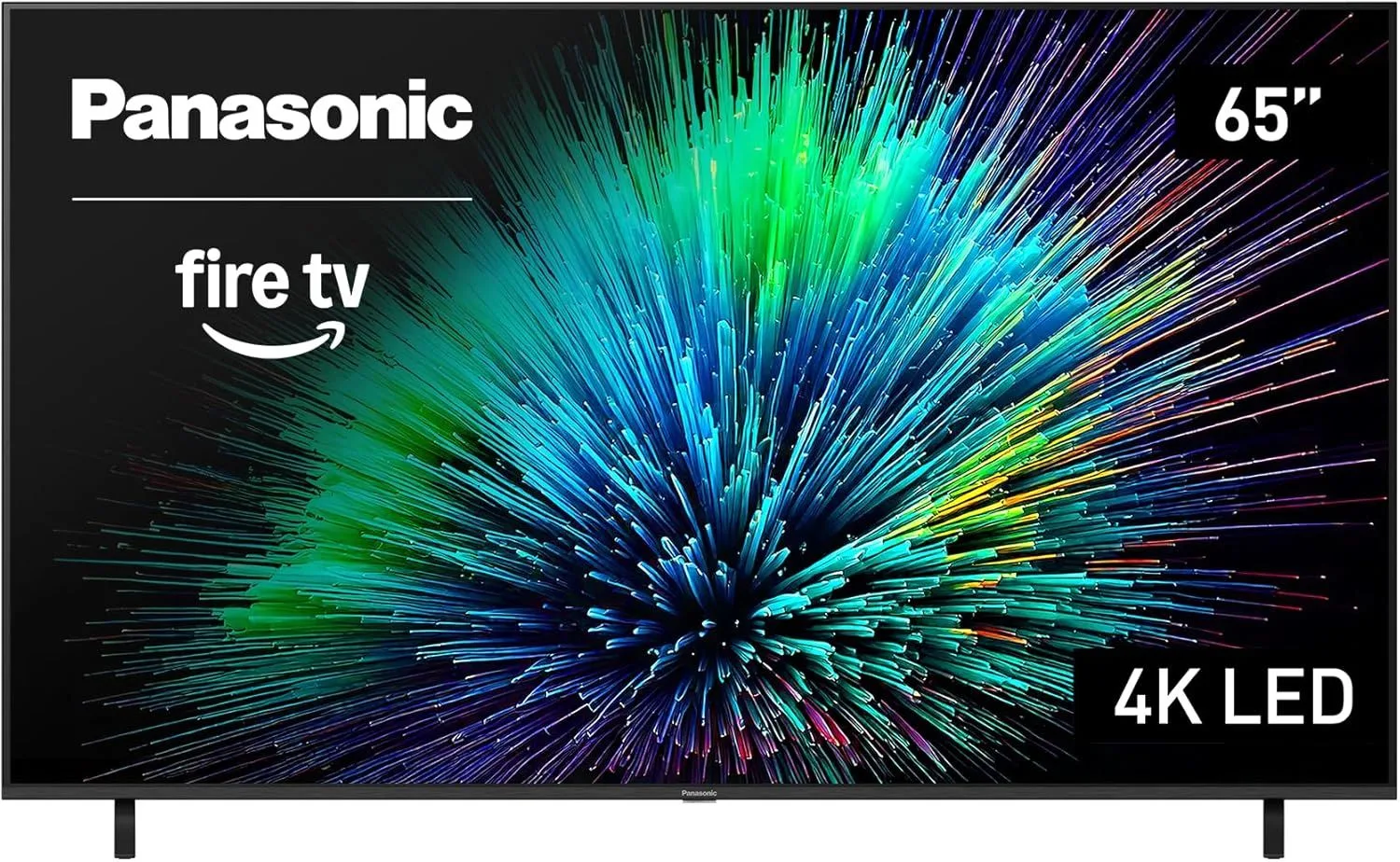
Panasonic's color science heritage means the W70 produces more natural, accurate colors than most TVs at this price. Skin tones look realistic and the image stays comfortable during extended viewing sessions — which matters when the TV is on for several hours a day. Fire TV with Alexa voice control keeps navigation simple.
The 20W speakers match Samsung's output, and Dolby Vision support improves streaming picture quality on Netflix, Disney+, and Apple TV+. At $300–$500, the Panasonic 65" W70 is a strong choice for someone who values a natural, easy-on-the-eyes picture.
Read our full Panasonic 65" W70 review
Remote Control: The Most Overlooked Factor
The remote is the single biggest source of daily frustration — or daily comfort. A confusing remote turns a perfectly good TV into a source of anxiety. A clear, well-labeled remote turns it into something enjoyable.
Roku's remote is the simplest available. Directional pad, Home button, Back button, four dedicated app shortcuts, and a volume rocker. No touchpad, no gesture controls, no pointer. Every button does one thing and is labeled.
Fire TV remotes are nearly as straightforward, with the valuable addition of an Alexa voice button. Many older viewers find that pressing one button and speaking is easier than navigating with the directional pad.
Avoid LG's Magic Remote (uses a pointer you aim at the screen — many older users find the floating cursor disorienting) and be cautious with Samsung's minimalist remote (fewer physical buttons means more functions hidden in on-screen menus).
Label the remote with small sticker dots. It sounds low-tech, but a colored sticker on the Home button and another on the Volume buttons gives an immediate visual reference. Many caregivers and adult children say this is the single most helpful thing they did when setting up a TV for a parent.
Making the Setup Stick: Tips for Family Members
Before You Hand Over the TV
- Connect to Wi-Fi and sign into all streaming accounts during setup
- Arrange the home screen so the most-used apps appear first — Netflix and the local news app in the top row
- Enable dialogue enhancement in the audio settings (off by default on every brand)
- Turn on closed captions if needed and increase the text size to "Large"
- Set the picture mode to "Standard" or "Movie" — the factory default "Vivid" mode is often harsh and tiring
- Remove or hide apps the viewer will never use — a home screen with 5 apps is easier to scan than one with 30
- If adding a soundbar, connect it through HDMI eARC so the TV remote controls its volume
Leave a Written Cheat Sheet
Write down the three to five tasks the viewer does most often: how to turn on the TV, how to open Netflix, how to switch to cable, how to adjust the volume, how to turn on captions. A laminated card placed next to the remote is more reliable than any verbal walkthrough.
Include the Wi-Fi password on the card. TVs occasionally disconnect from Wi-Fi after power outages or software updates. Having the password accessible prevents a support call.
HDMI-CEC (Samsung calls it Anynet+, LG calls it SimpLink) lets the TV remote control a connected soundbar or cable box. One remote for everything reduces confusion. Find it under Settings, then External Devices or General. Turn it on during initial setup.
Frequently Asked Questions
What is the easiest smart TV platform for older adults?
Roku OS is widely considered the most intuitive smart TV platform. The home screen shows a simple grid of app icons with no algorithmic feed, no auto-playing video previews, and minimal advertising. Press Home, see your apps, select one. Fire TV is a close second thanks to Alexa voice control, which lets you find shows by speaking instead of typing with a remote.
What screen size is best for seniors with vision concerns?
A 65-inch TV viewed from 8 to 10 feet provides the best balance of screen size and comfortable viewing for most living rooms. Menu text, channel guides, and closed captions become significantly more readable at this size. If the viewing distance is shorter (6 feet or less), a 55-inch set works. Avoid going smaller than 55 inches if readability is a concern.
Do smart TVs have voice control so you do not need to type?
Yes. Fire TV models include Alexa voice control through the remote — press the microphone button and say the name of a show, actor, or genre. Roku TVs support voice search through the remote as well. Google TV responds to "Hey Google" commands. Voice search eliminates the frustrating hunt-and-peck typing on an on-screen keyboard.
Can a smart TV make dialogue in shows easier to hear?
Several TV brands include dialogue enhancement or voice clarity modes in their audio settings. Samsung TVs have Active Voice Amplifier. Toshiba and Fire TV models offer DTS Virtual:X which helps center voices in the sound mix. For the most noticeable improvement, a basic soundbar with a dedicated center channel makes dialogue far clearer than any built-in TV speaker.
Are budget TVs reliable enough for everyday use?
Absolutely. Budget TVs from Roku, Toshiba, Insignia, and Samsung use the same smart TV platforms and streaming apps as expensive models. The picture quality differences matter most in dark rooms or for fast sports content. For everyday news, shows, and movies in a normally lit room, a budget 4K TV performs well and typically lasts five to seven years with no maintenance.
Should I buy a soundbar along with the TV?
If the viewer frequently raises the volume or asks others to repeat dialogue, a soundbar is one of the best companion purchases. A basic soundbar with a dialogue enhancement mode often costs less than a few months of streaming subscriptions. Connect it through the HDMI eARC port and the TV remote controls the soundbar volume automatically — no second remote needed.
How do I set up a new smart TV for someone who is not tech-savvy?
Connect the TV to Wi-Fi during the guided setup, sign into streaming apps (Netflix, Hulu, etc.) beforehand, and arrange the home screen so the most-used apps appear first. On Roku, pin favorite channels to the top row. On Fire TV, create a simplified profile. Leave written instructions for the two or three tasks they do most: turn on the TV, open Netflix, and adjust volume.
Find the Right TV
For the simplest out-of-box experience, the Roku 65" Select with Roku OS is the safest pick. The interface is intuitive, the remote is clear, and the 65-inch screen makes everything readable.
For voice-first navigation, the Toshiba 65" C350 pairs Alexa voice control with Dolby Vision and dialogue-friendly audio at a price that fits most budgets. And if cost is the deciding factor, the Insignia 65" Fire TV puts 65 inches of 4K screen in the living room for the lowest price from a recognized brand.